
A Review Cycle serves as a checkpoint to ensure that the defined capabilities correctly represent the current capabilities. It is an opportunity for data providers to timely update their data.
- Review Cycle for the Company Capabilities
- Review Cycle for the Location Capabilities
- What to do when your Company and Location data is about to expire or has expired?
Review Cycle - Company Capabilities
An authorized user for the company capabilities can define a Revision Period. The default Revision Period is 12 months. A user can select the revision period to be between 6 to 24 months.
To do that, go to the My Company menu. Under the Configuration tab, click on the pencil corresponding to User roles. You will get the following Pop-up to edit the duration of the Revision Period.
 Note: When the status of the company capabilities is in the "Reviewed" status a user cannot modify the value to be less than the already defined number. The Revision Period must be greater than its current value when the status is Approved.
Note: If the Company capabilities are in an Expired status, and the user increases the Revision Period to after the current date, the company capabilities are still in the "Expired" status.
What happens once the revision Period is reached?
One month before the defined revision period is reached, the status of the company capabilities changes to "About to Expire" from the "Reviewed" status.
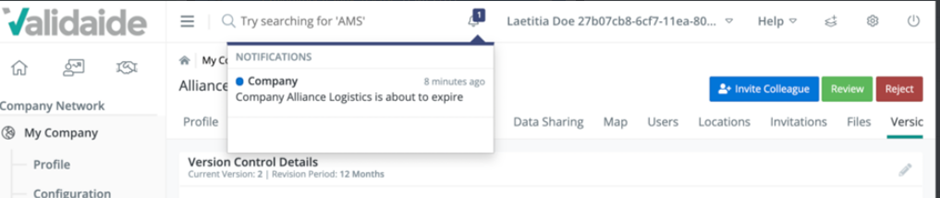
At the end of the revision period, the status automatically changes from "about to Expire" to "Expired" status. The authorized user gets a task and a notification that the company's capabilities need to be updated.
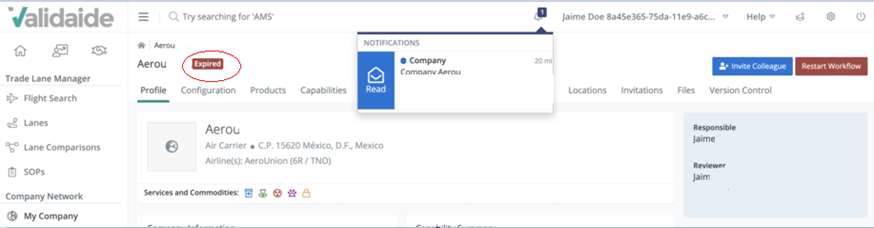
Implications of Expired Data
Please note that when the Supplier Company data is Expired and used as a View in a Lane, it is indicated in the Lane Configuration as Expired (instead of Reviewed) in the Modify Lane Step Form. However, the "status indicator bar" is still shown as Green - so the data is still available in the lane step ("Data available").
Review Cycle - Company Location Capabilities
An authorized user can define a Revision Period. The user can select a revision period between 6 to 24 months; the default is 12 months.
One month before the defined revision period is reached, the status of the company location capabilities changes from the "Reviewed" status to "About to Expire". At the end of the revision period, the status automatically changes from "About to Expire" to "Expired" status. The authorized user gets a task and a notification that the location capabilities need to be updated.
Implications of Expired Data
Please note that the "Expired" status does not mean that the data is unavailable; it means there is a possibility it might not be up to date. Hence, if expired location data is used in a Lane, the data will be available in green but with a warning. This is only visible in the configuration screen.
What to do when your Company and Location data is about to expire or has expired?
If your company capabilities or your company location capabilities are or have
to return your company capabilities to a
status follow these steps.
Please note that only authorized users can review the company's capabilities data.
Go to My Company, you will see the status of your capabilities. Click on to update your capabilities data.
After clicking on your company capability status will change to
, thus you can edit the questionnaire.
Go to the tab to verify that the information provided is up to date and that capabilities are a correct representation of the current capabilities. After verifying the data or if there is no change in capabilities click on
. After that, your reviewer can
your company capabilities. If information is rejected, please verify the information again, if data is reviewed it will return to the
status. Only when the data is in the reviewed status it is visible to other companies on the platform.
Note: When restarting the workflow, submitting, and approving or rejecting your company or location capabilities, your email and password must be entered to approve with a digital signature.
Note: When restarting the workflow, submitting, and approving or rejecting your company or location capabilities, your email and password must be entered to approve with a digital signature.
Comments
0 comments
Please sign in to leave a comment.